M32-Edit 4.4.1 Interface Map
Church AV / M32 Handbook update
Captured from the church's Unity Start configuration, offline in M32-Edit 4.4.1 on Zorin
Revision checkpoint: September 6, 2026
This chapter is a practical map of the computer version of M32-Edit. It is intended to help an operator move confidently between the physical M32, M32-Edit on a computer, and the iPad app without assuming that visually similar functions always appear in the same place.
Important: The screenshots in this chapter show a saved offline copy of
Unity Start. They are excellent for training and routing inspection, but the live console is authoritative on Sunday if Scott or another operator has changed and saved the live configuration since the copy was made.
1. Master Mixer Screen
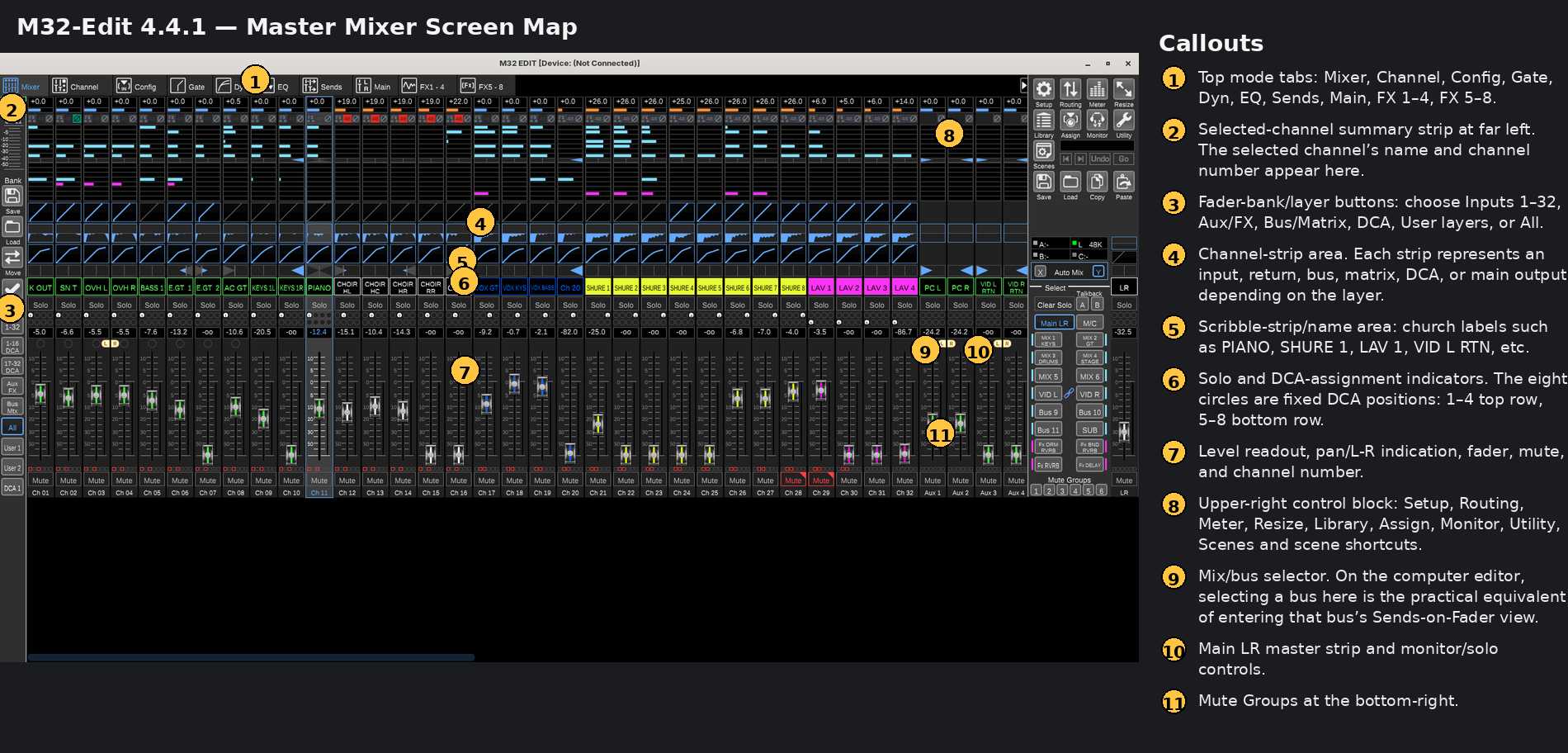
Main areas
- Top mode tabs — switch the large editor pane among Mixer, Channel, Config, Gate, Dynamics, EQ, Sends, Main, and the effects pages.
- Selected-channel summary — identifies the channel currently selected for detailed editing.
- Fader banks/layers — change which group of channels appears on screen.
- Channel strips — the main fader-strip workspace.
- Scribble strips — names and color coding for church sources and destinations.
- DCA indicators under Solo — eight fixed DCA positions.
- Fader controls — level, pan/assignment indicators, mute and channel identification.
- Upper-right control block — Setup, Routing, Meter, Resize, Library, Assign, Monitor, Utility, Scenes.
- Mix/bus selector — Main LR and Mix Bus selection, including VID L and VID R.
- Main LR master — main output master and associated solo/monitor area.
- Mute Groups — quick access to mute-group controls.
2. Channel Strip: the DCA Circles
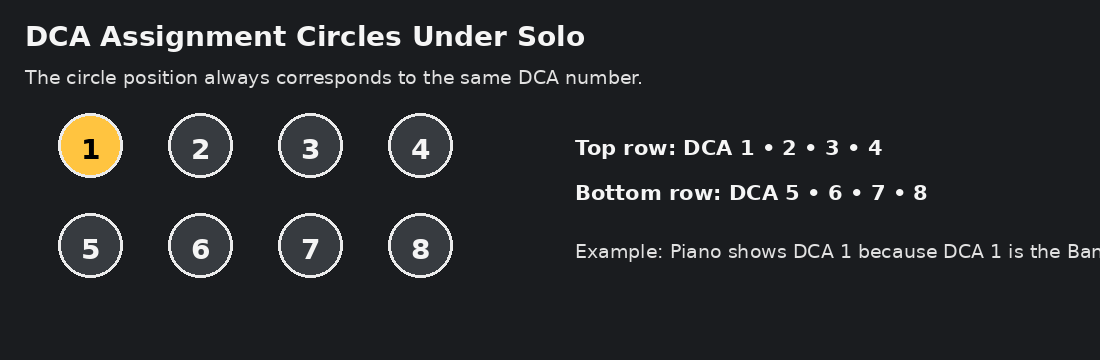
The eight circles immediately below Solo are DCA membership indicators.
Their positions are fixed:
| Position | DCA |
|---|---|
| Top-left | 1 |
| Top second | 2 |
| Top third | 3 |
| Top-right | 4 |
| Bottom-left | 5 |
| Bottom second | 6 |
| Bottom third | 7 |
| Bottom-right | 8 |
A filled/numbered circle means that channel belongs to that DCA. In the Unity Start configuration, Piano is assigned to DCA 1 (Band).
These circles are not signal-strength meters and are not Bus 1–8 indicators.
3. Selected Channel — Channel Page
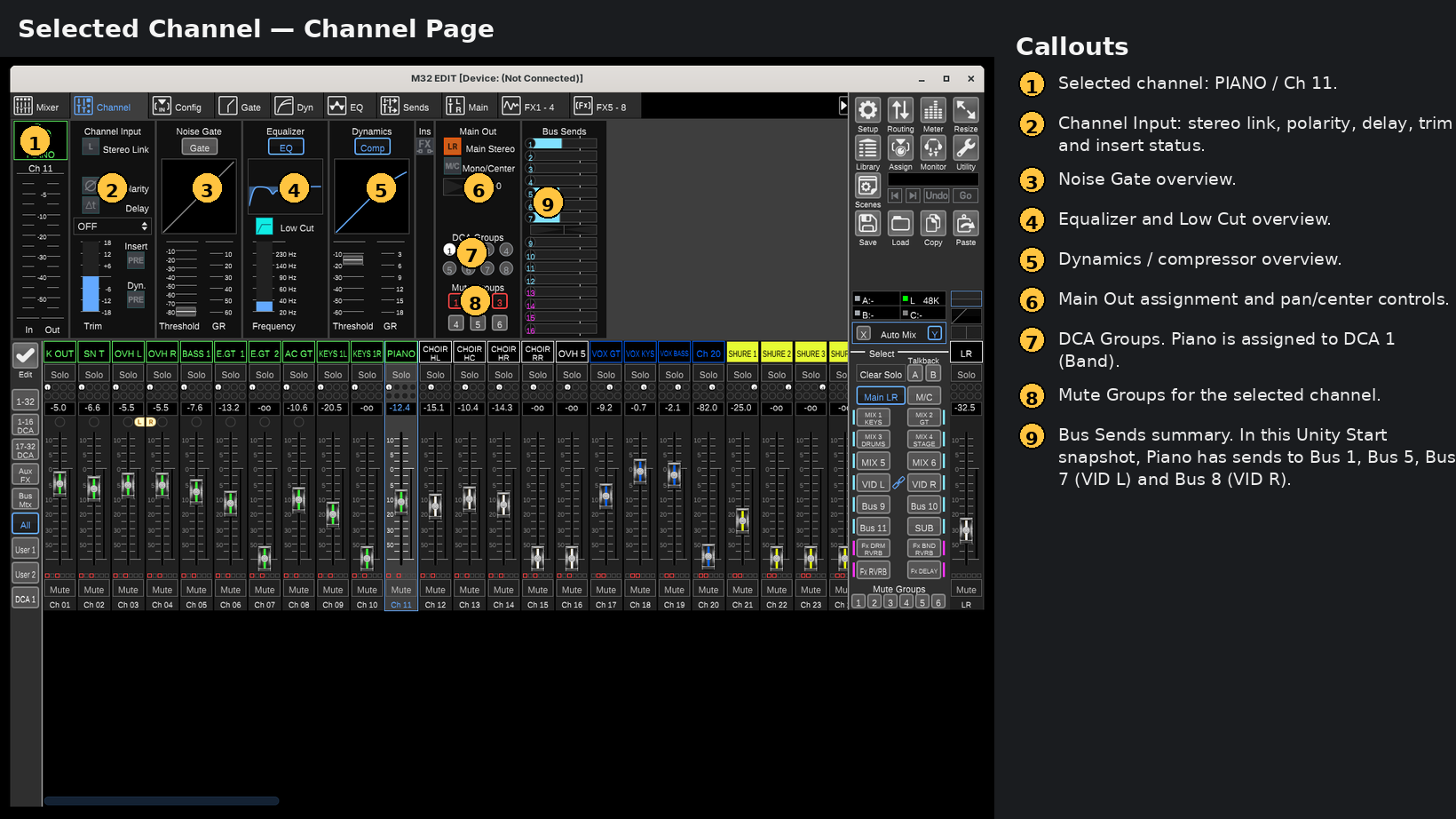
The Channel tab provides a one-screen summary of the selected channel:
- Channel input configuration
- Gate
- EQ / Low Cut
- Compressor / Dynamics
- Main output assignment
- DCA assignments
- Mute-group assignments
- Bus-send overview
For the Piano channel in the captured Unity Start file, the Bus Sends display shows active sends to:
- Bus 1 — MIX 1 KEYS
- Bus 5 — MIX 5
- Bus 7 — VID L
- Bus 8 — VID R
4. Top Editing Tabs
Mixer
Normal fader workspace.
Channel
One-page summary of the selected channel.
Config
Detailed source, trim, polarity, low-cut, delay and insert configuration.
Gate
Noise-gate / expander / ducker controls, including threshold, range, attack, hold, release and side-chain filter.
Dyn
Dynamics/compressor controls, including threshold, ratio, knee, mix, gain, timing and side-chain filtering.
EQ
Four-band parametric EQ plus Low Cut and RTA display.
Sends
Shows the selected channel's sends to all 16 Mix Buses, the send level, on/off state and signal tap point.
Main
Main L/R and Mono/Center assignment, panning, DCA groups and Mute Groups.
FX 1–4
The four send/return-style effects slots. In the captured setup these include Vintage Room and Stereo Delay.
FX 5–8
Insert-style / processing effects slots. In the captured setup these include Dual Graphic EQ, Dual TruEQ and Precision Limiter processing.
Reference screenshots for each tab are included in reference_screenshots/.
5. Sends on Fader — Three Different Interfaces
This is one of the most important visual differences between the three ways the church operates the M32.
| Platform | How to enter Sends on Fader |
|---|---|
| Physical M32 | Press the dedicated SENDS ON FADER hardware button and select the desired Mix Bus. |
| M32-Edit on computer | There is no matching dedicated on-screen Sends on Fader button. Select the desired bus in the lower-right Mix/Bus selector; the editor presents the bus-focused fader workflow there. |
| M32 iPad app | The iPad interface includes an explicit on-screen Sends on Fader button. |
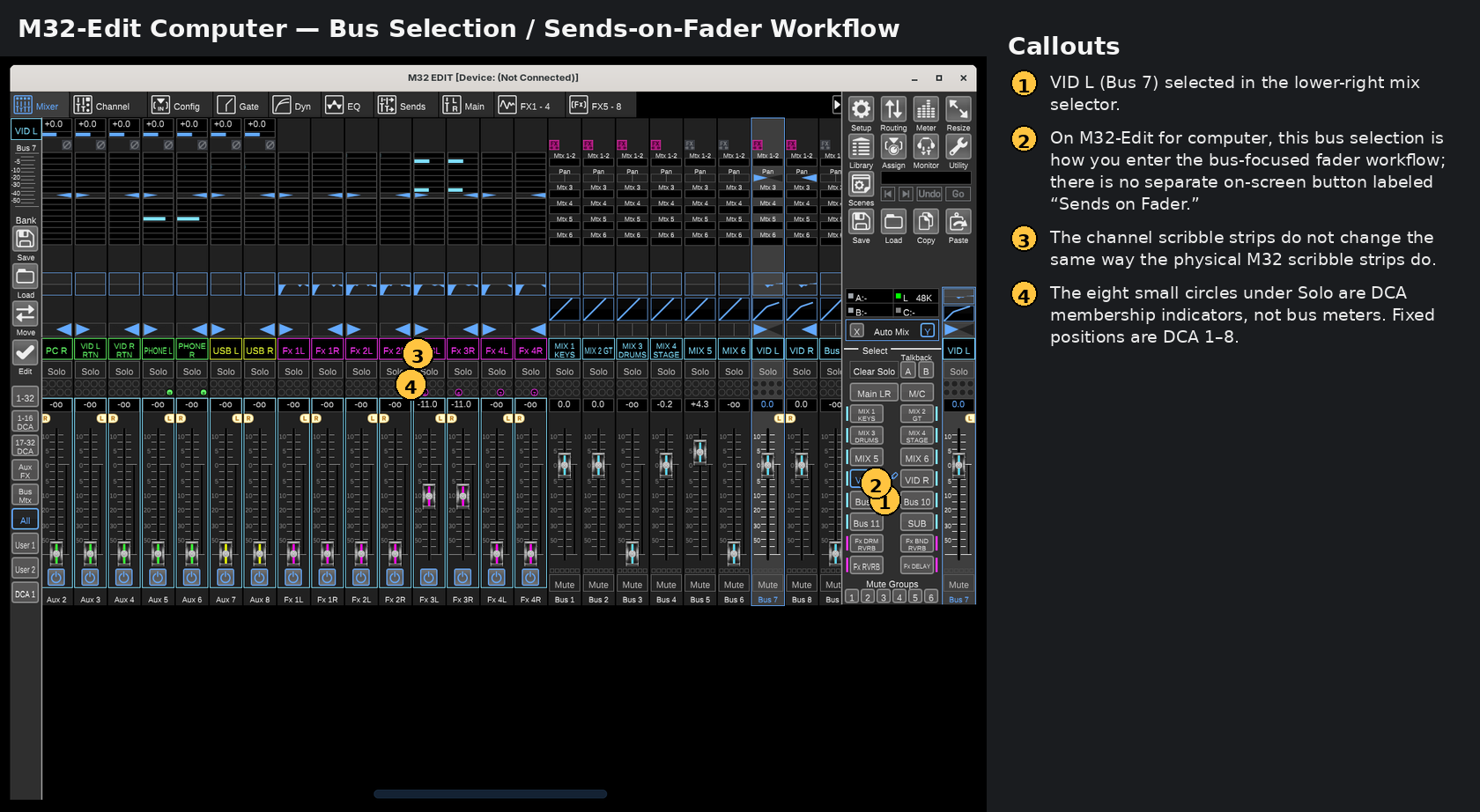
Visual difference to remember
The physical M32 can add destination/context information to the physical scribble-strip displays while working with a selected bus. The computer editor does not reproduce that visual behavior exactly.
This difference briefly confused both Cory and Scott even though the underlying mixer logic was familiar. Always verify the selected bus in the lower-right selector before moving faders.
6. Right-Side Control Block
Setup
Global editor and mixer configuration.
Captured Setup tabs:
- Connection — mixer discovery, IP connection and synchronization direction
- Mixer — sample rate, synchronization, show control, panning and global preferences
- GUI Prefs — computer-editor behavior and display preferences
- MIDI Control — MIDI / remote-control configuration
- Preamps — preamp blocks and head-amp controls
- Card — expansion-card information
Offline “No Card installed” message
When M32-Edit is running offline, Setup → Card can show “No Card installed!” because the software cannot interrogate the physical M32 LIVE/DN32-LIVE hardware. This does not mean the two 32-GB SD cards installed in the church console have been removed.
Routing
Controls how internal signals are patched to inputs and outputs. This is the place to inspect AES50 and DL32 routing.
Meter
Metering views for:
- Channels
- Mix Buses / matrices / main
- Aux / FX
- Inputs and outputs
- Automix
Resize
Changes the editor window layout/size.
Library
Preset storage and recall for:
- Channels
- Effects
- Routing
- AES50 personal-monitoring configuration
Assign
Configures three independent banks of assignable controls:
- Set A
- Set B
- Set C
Each set can give the encoders and buttons different targets and shortcuts.
Monitor
Contains:
- Monitor / solo options
- Talkback A
- Talkback B
- Oscillator
Utility
Utility opens a fly-out navigation menu, rather than a conventional configuration dialog. Its shortcuts include:
- Main Meter
- RTA
- Bus 1–8
- Bus 9–16
- Matrix/Main
- DCA 1–8
- User 1
- User 2
- DCA Spill
Scenes / Show Control
The Show Control window contains:
- Cues — ordered show-control events
- Scenes — broad mixer-state saves/recalls
- Snippets — selective recall of chosen parameters/channels
- Mixer Safes — protects selected parameters/channels from scene recall
7. Monitor and Talkback
In the Unity Start copy examined on September 6:
Talkback A
Talkback A is assigned to:
- MixBus 01
- MixBus 02
- MixBus 03
- MixBus 04
Main L/R is not selected.
Those buses correspond to the first four band monitor/IEM destinations in this setup, which closely matches Scott's description of sending his talkback only to the band.
Talkback B
In the saved offline file, Talkback B is assigned to Main L/R.
Because this is an offline saved file, verify the live console if a same-day change has not yet been saved back into the home copy.
8. Unity Start Routing to the DL32
The routing investigation confirmed:
Routing → AES50sends Out 1–8 to AES50-A 1–8 and Out 9–16 to AES50-A 9–16.- The DL32 is connected to the M32 through AES50-A.
Routing → Out 1–16defines the sources for those sixteen outputs.
Captured Out 1–16 map
| DL32 physical output | Source in Unity Start |
|---|---|
| OUT 1 | Mix Bus 1 — KEYS |
| OUT 2 | Mix Bus 2 — GT |
| OUT 3 | Mix Bus 3 — DRUMS |
| OUT 4 | Mix Bus 4 — STAGE |
| OUT 5 | Mix Bus 5 |
| OUT 6 | Mix Bus 6 |
| OUT 7 | Mix Bus 7 — VID L |
| OUT 8 | Mix Bus 8 — VID R |
| OUT 9 | Mix Bus 9 |
| OUT 10 | Mix Bus 10 |
| OUT 11 | Mix Bus 11 |
| OUT 12 | Mix Bus 12 — SUB |
| OUT 13 | Mix Bus 13 — FX-related destination label |
| OUT 14 | Mix Bus 12 — SUB |
| OUT 15 | Matrix 2 — MAIN R |
| OUT 16 | Matrix 1 — MAIN L |
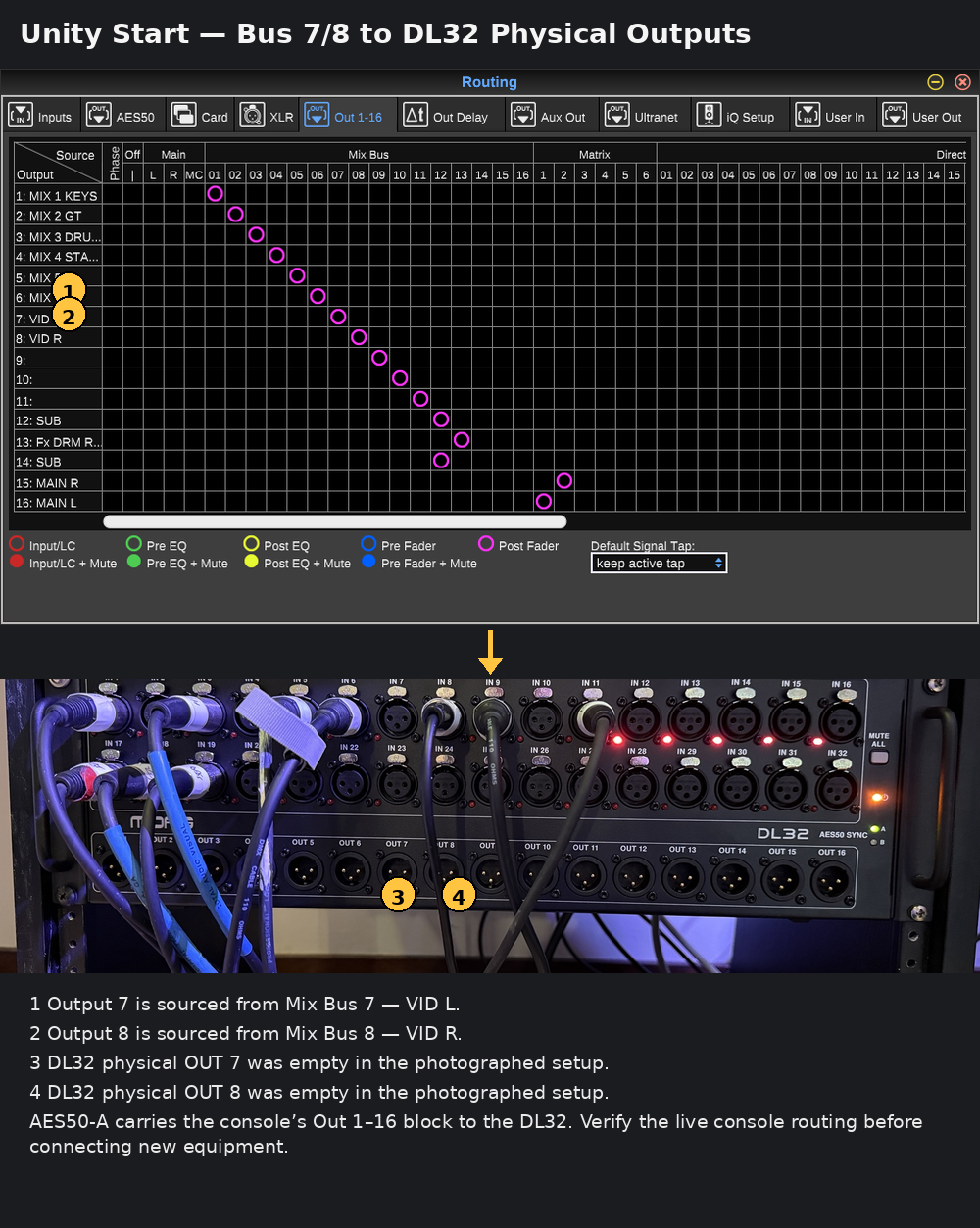
The physical DL32 photograph shows OUT 7 and OUT 8 with no cable plugged into them at the time of the photograph. This makes them promising physical connection points for a future stereo wireless monitor/IEM transmitter carrying the existing VID L/R broadcast mix.
Before connecting equipment: confirm the routing on the live console. A physically empty XLR socket is not proof that its internal routing is unused.
9. Main Church Mix Architecture — Practical Mental Model
A single input channel can feed several independent destinations:
- Main L/R — sanctuary/house mix
- Band monitor/IEM buses — musician-specific monitor mixes
- Bus 7/8 VID L/R — dedicated broadcast/video mix
- other buses, effects and matrices as configured
Changing a channel's send to a particular bus changes that destination mix without necessarily changing Main L/R or another bus.
This is why Scott can create separate monitor/IEM mixes for the musicians while Cory can adjust the dedicated Bus 7/8 broadcast mix independently.
10. Computer vs Physical Console — Operator Cross-Reference
| Task | Physical M32 | M32-Edit Computer |
|---|---|---|
| Select a channel | Press SELECT on the strip | Click the desired channel strip |
| Change fader bank | Physical layer buttons | Left-side bank/layer buttons |
| Sends on Fader | Dedicated hardware button | Select bus in lower-right Mix/Bus selector |
| DCA membership | Console indicators/assignment screens | Eight circles under Solo plus Channel/Main group assignment page |
| Bus destination context | Physical scribble strips can provide added context | Verify selected bus in lower-right selector; scribble strips do not mirror the console exactly |
| Detailed processing | Physical channel section + display | Config / Gate / Dyn / EQ / Sends / Main tabs |
| Routing | ROUTING screen | Routing button and routing tabs |
| Monitor / Talkback | Monitor/Talkback console controls | Monitor button: Monitor, Talkback A/B, Oscillator |
| Scene management | SHOW CONTROL / Scenes | Scenes button → Show Control |
11. Training Rule
When moving from the physical M32 to the computer or iPad, do not search only for a control that looks identical. First identify the function you need, then locate how that platform represents the function.
The mixer architecture is largely the same; the user-interface presentation is not.